|
1
|
- Vance Stevens
Lecturer in Computing
Petroleum Institute, Abu Dhabi
- URL for this handout: http://tinyurl.com/9pqd7
|
|
2
|
- Barbara Dieu - http://evo05.blogspot.com/
- Sergei Gridyushko and Susanne Nyrop and their Mystery Guest: http://www.goinupstream.blogspot.com
- Teresa Almeida d'Eça: http://www.malhatlantica.pt/teresadeca/
- Buthaina Alothman
http://khalda.blogspot.com/ and http://162group3.blogspot.com/
- Hala Fawzi http://halahassanfawzi.blogspot.com
|
|
3
|
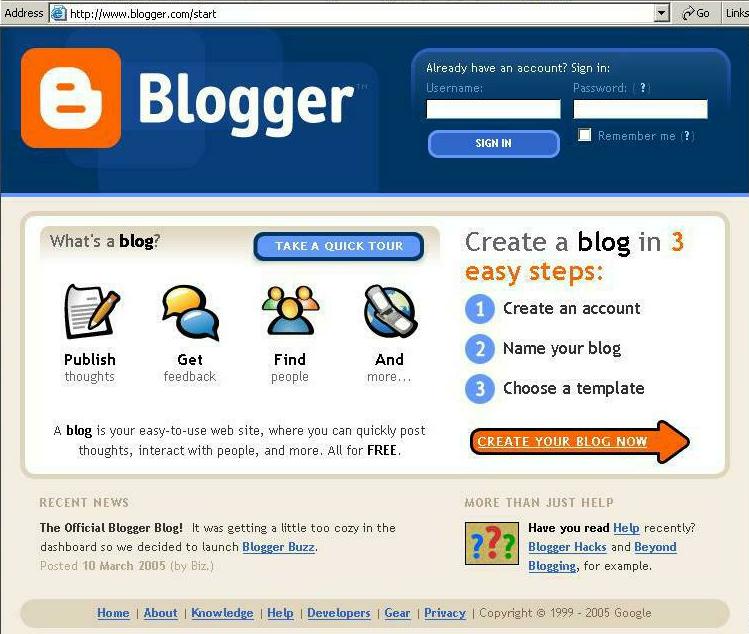
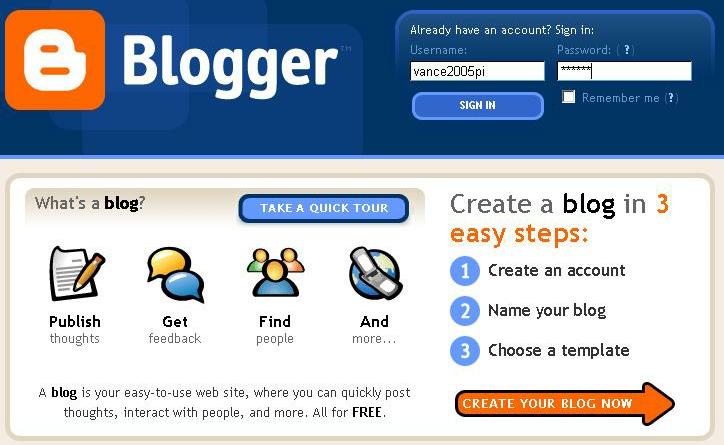
- Start here:
http://www.blogger.com
- Instructions:
http://tinyurl.com/md9i
|
|
4
|
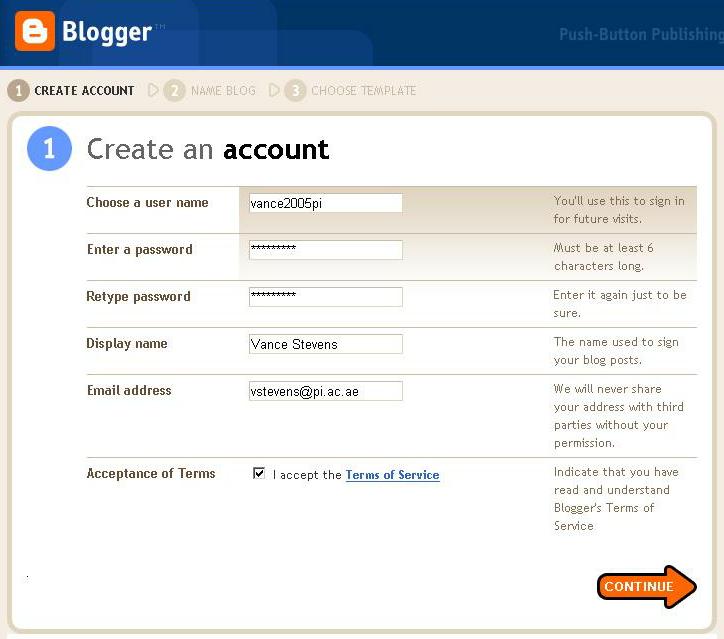
- You can create many blogs under the Blogger Account you are starting
here.
- Remember your user name and password
- You can recover both if you give a valid email address
- Display name is how you sign your posts and comments in other blogs
- Accept the terms and click CONTINUE
|
|
5
|
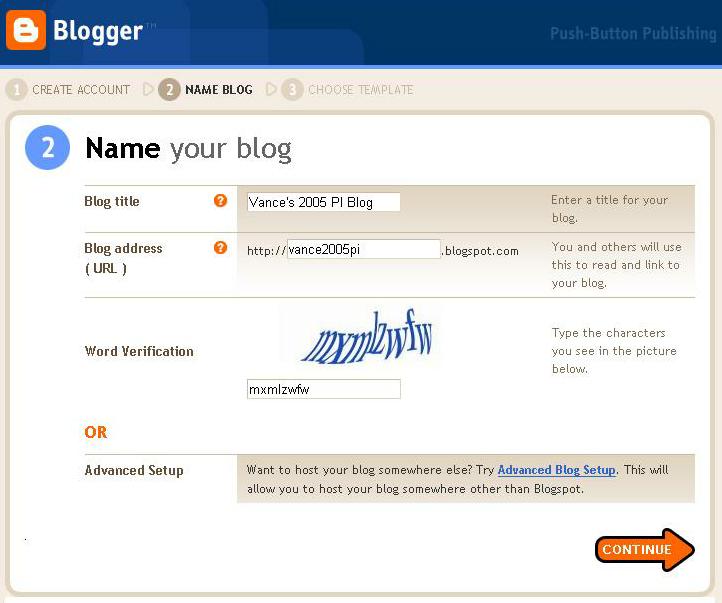
- The blog title appears on your blog page and can be changed later in
Settings
- Your blog address should be something anyone can easily write and
remember.
- Note your URL. This is the web address you give everyone you want to
show your blog to.
|
|
6
|
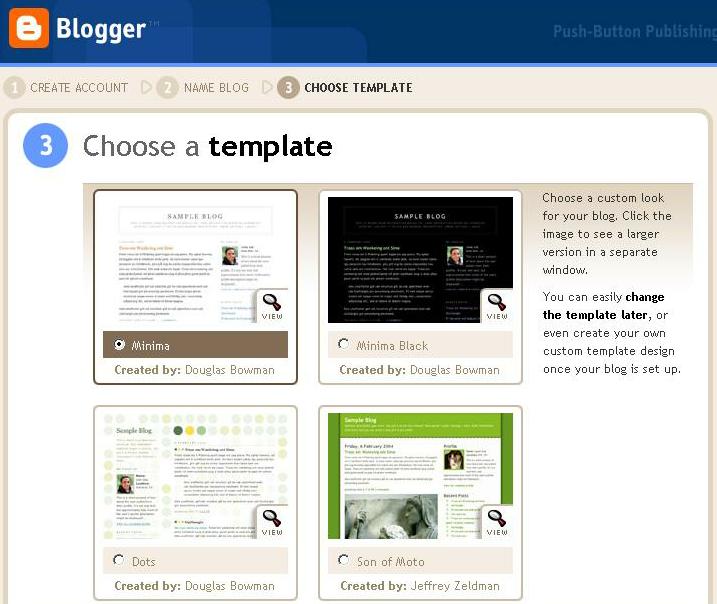
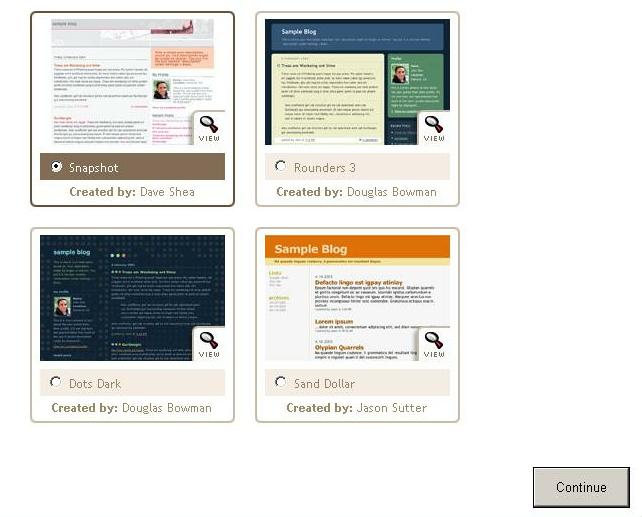
- The template defines what your blog will look like
- People see what is in the template whenever they visit your blog - the
blog CONTENT changes as you add and edit posts
- You can click on a template to PREVIEW it. This is NOT choosing it.
- To CHOOSE a template, select it by clicking its radio button and then
click CONTINUE
|
|
7
|
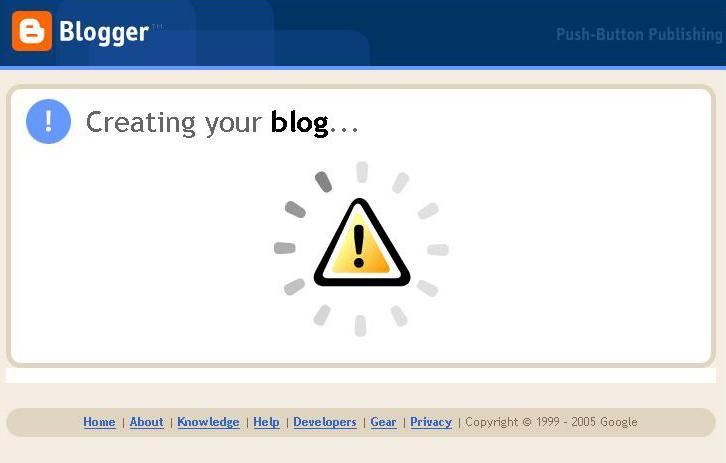
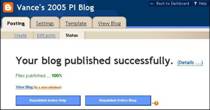
- Blogger is setting up your blog
- You still can’t see your blog on the Internet
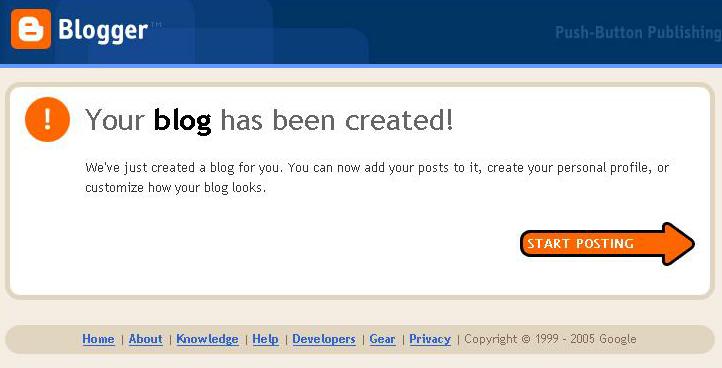
- You have to POST to it first
- Think of something to say and click on START POSTING
- (Don’t worry about what you write; you can always change it later)
|
|
8
|
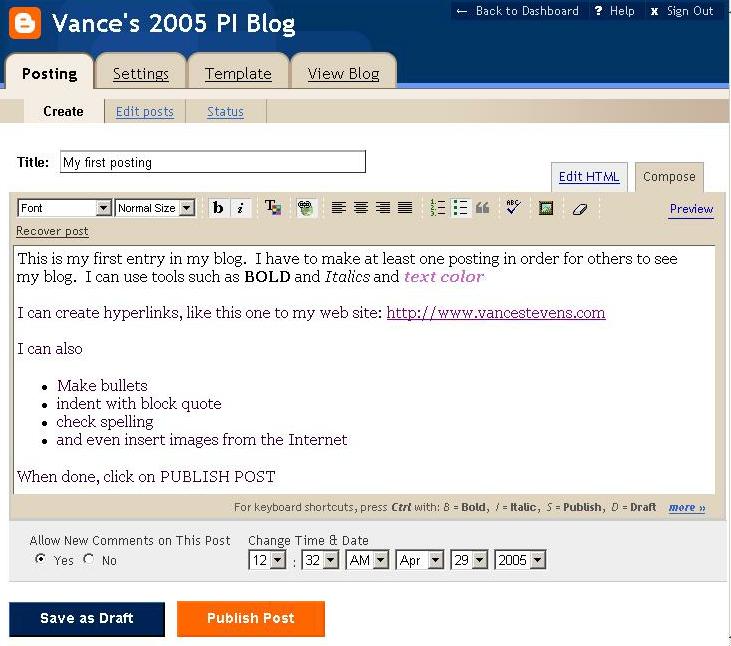
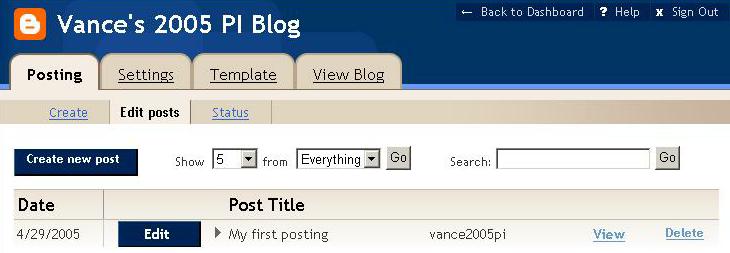
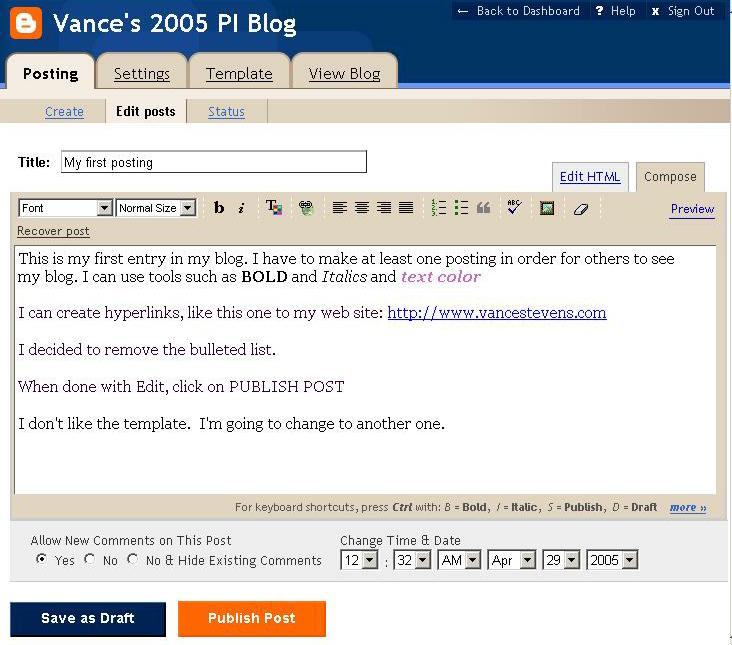
- CREATE posts under Posting / Create
- The TITLE appears above the post in the blog
- In COMPOSE view there are many tools for creating posts
- In EDIT HTML view you can post in HTML code
- You can save your post and work on it later (no one will see it)
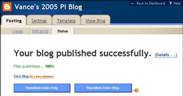
- In order for the world to see it you must PUBLISH your post
|
|
9
|
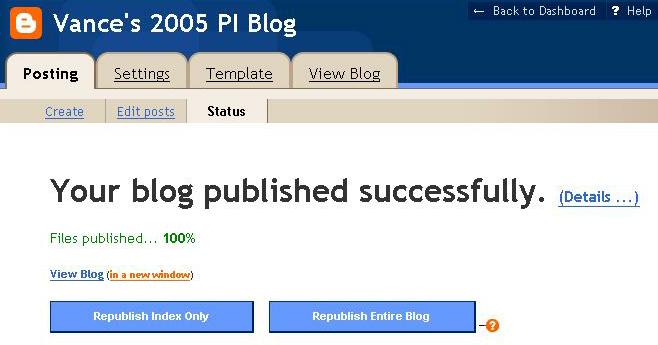
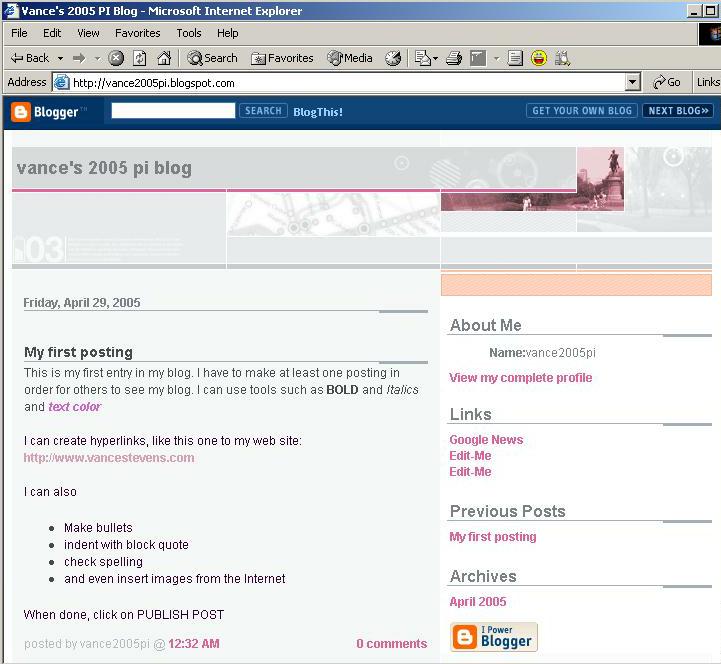
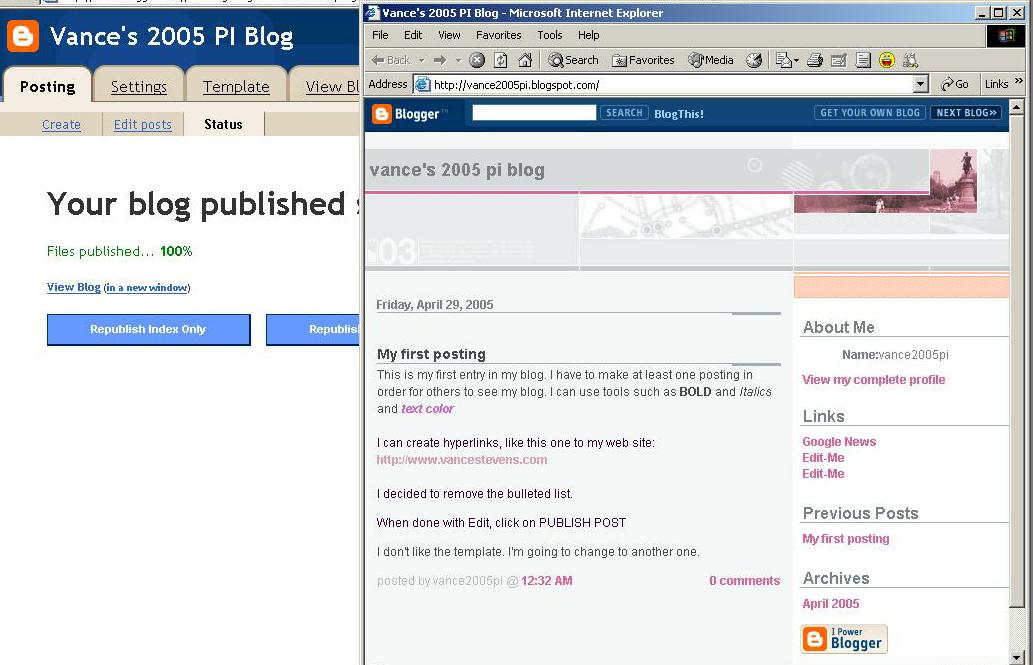
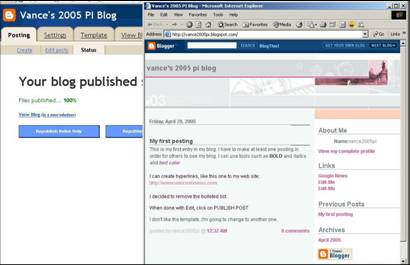
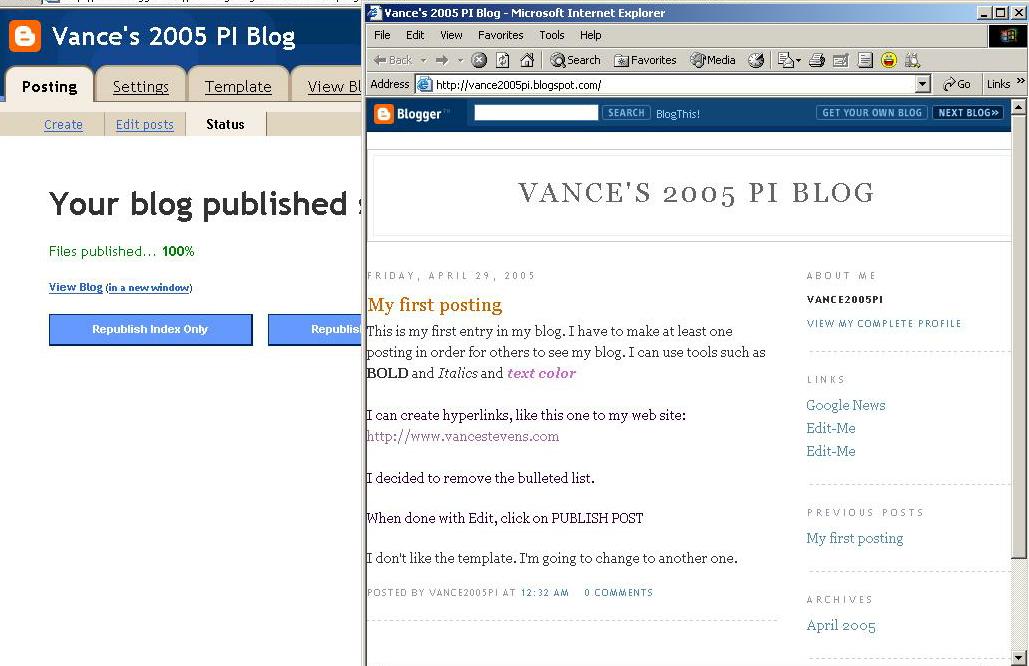
- You should be able to see your blog now
- Best to view it in a NEW window.
- Each time you change and re-publish your blog, you can see the changes
by refreshing this new browser window
|
|
10
|
|
|
11
|
|
|
12
|
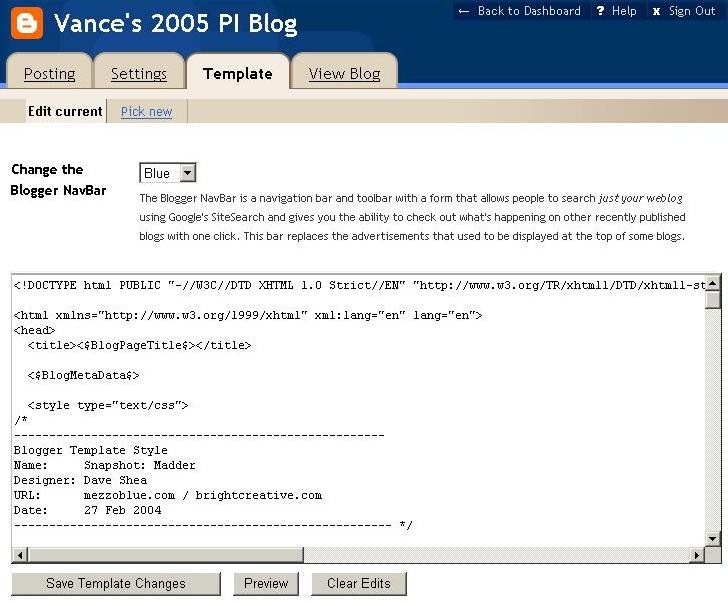
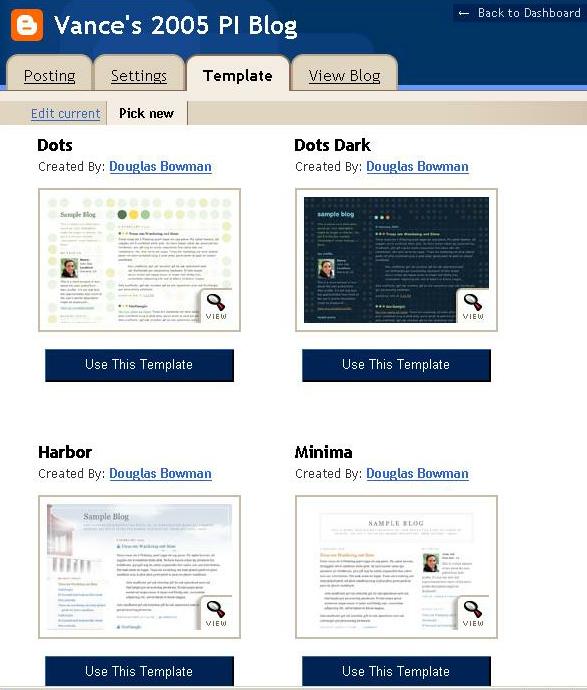
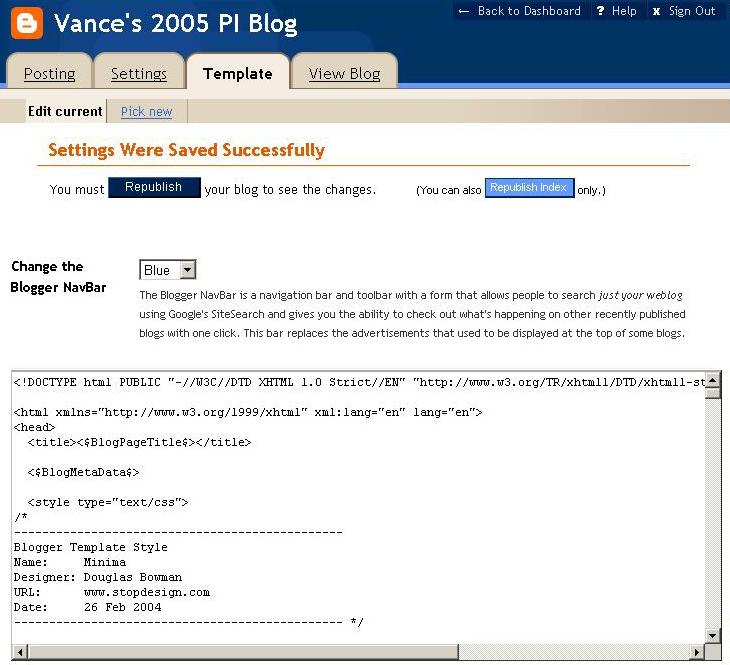
- You can change the appearance of your blog by choosing a new template
- The default view is to see the code
- Choose PICK NEW to select a new template
|
|
13
|
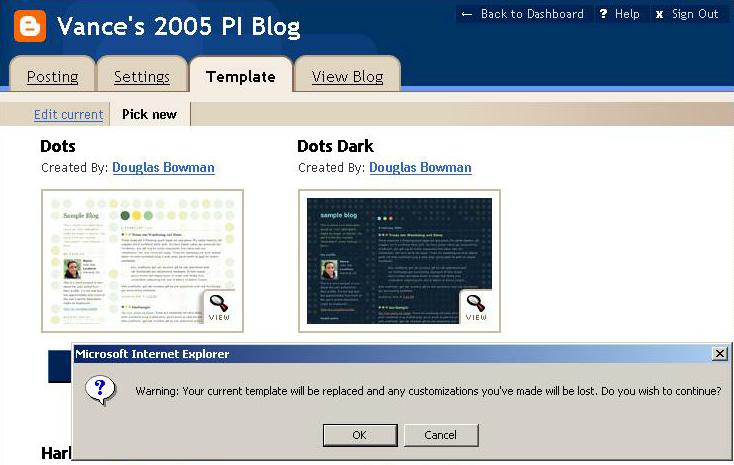
- If you have made changes to the code of the old template, these will not
be preserved in the new one
- An example of changing the code is creating links in the sidebar
- If you haven’t changed the code, ignore the warning
|
|
14
|
- Changes to the template require you to republish your blog before the
world can see them
|
|
15
|
|
|
16
|
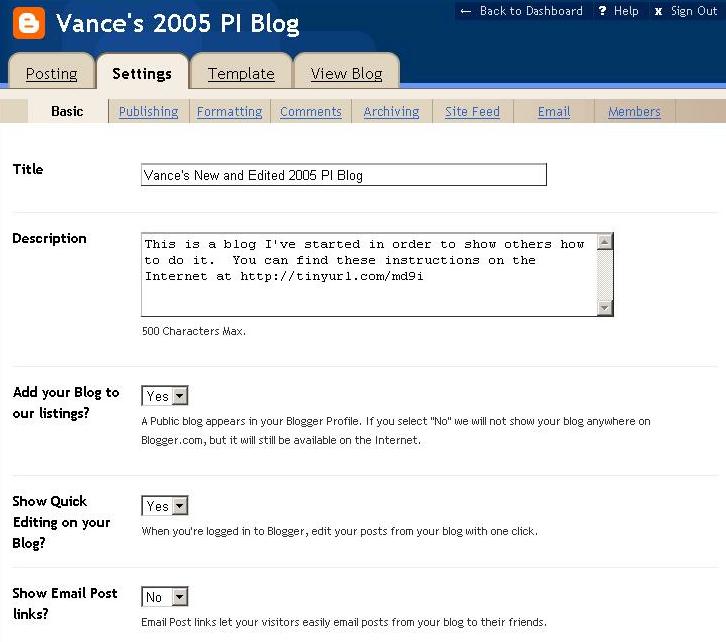
- Settings change things that are seen by all visitors to your blog
- You can change the title of your blog from what you called it when you
Named your Blog
- You can write a description of your blog that will appear below the
title
- You can include HTML (such as links to pictures) in your description
|
|
17
|
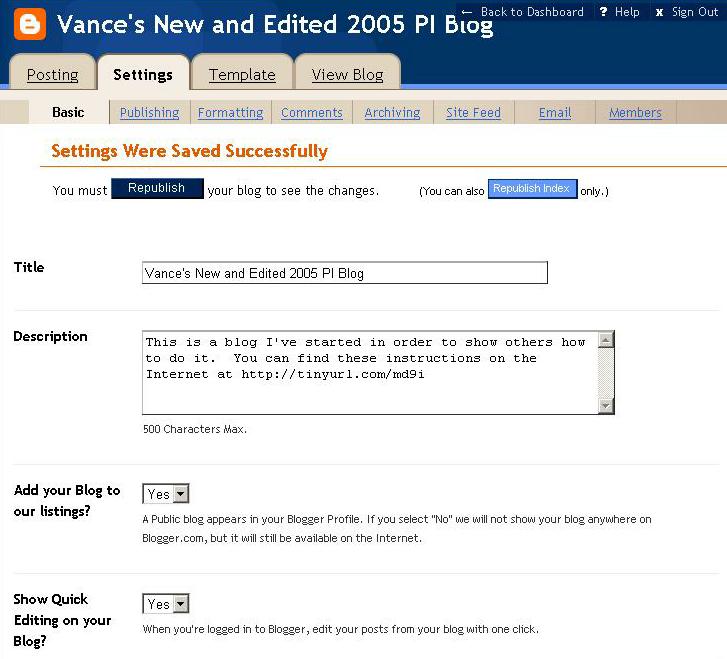
- When done, scroll down and SAVE your settings
- Finally, republish your blog
|
|
18
|
- Next time at http://www.blogger.com log on to your account with your
User Name and Password
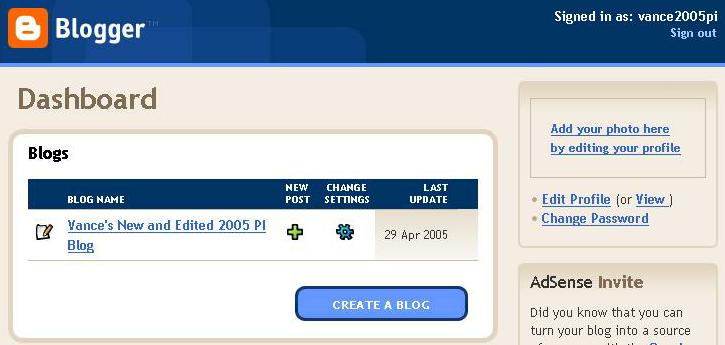
- Use your Dashboard to create a new blog or work on an old one
|

 Notes
Notes